Net worth tracker features
Everything TrackMyStack does
Track every asset you own without linking a bank account, see how your investments are really doing, and plan for the years ahead. Open any feature to see what it does, and what is free and what Premium adds.
Track everything you own
Investments, property, cash and debts in one net worth, priced automatically where a market price exists.
Free · more with Premium Net worth dashboard Your total net worth across every portfolio, with history charts from one week to all time.
- One net worth across all your portfolios, converted to your home currency
- History charts from one week to all time, or between any two dates you pick
- Assets and debts stacked separately with a net worth line, or the chart split by portfolio
- One-year, month-to-date and year-to-date changes
- Leave a portfolio out of your net worth, or count only your share of a joint one
- Free
- Your net worth, its one-year, month-to-date and year-to-date change, and history charts for any range.
- Premium adds
- Today’s change on the dashboard, your portfolios and your holdings, with live prices.
Available in the iPhone, Android and web apps.
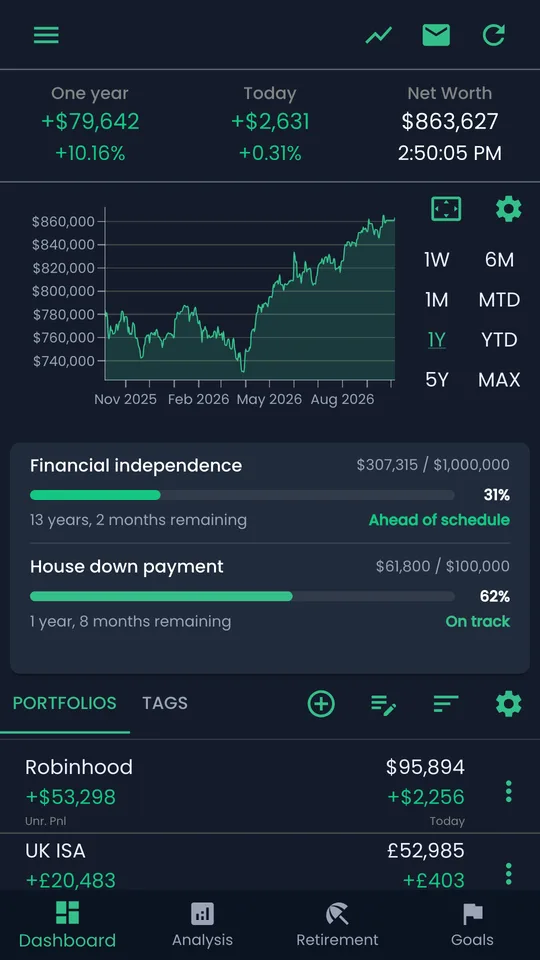
Free Portfolios One portfolio per account, each with its own currency, ownership share and tags.
- Unlimited portfolios and assets, free
- A currency for each portfolio, converted to your home currency
- Count only your share of a joint account with an ownership percentage
- Group portfolios with tags, and sort or reorder portfolios and the assets inside them
- Archive a portfolio you have closed: it stops counting toward your net worth but keeps its history
- Restore anything you deleted in the last 30 days from Recently deleted
- Free
- Unlimited portfolios and assets, with currencies, ownership shares, tags, archiving and Recently deleted.
- Premium adds
- Nothing. This feature is fully free.
Available in the iPhone, Android and web apps.
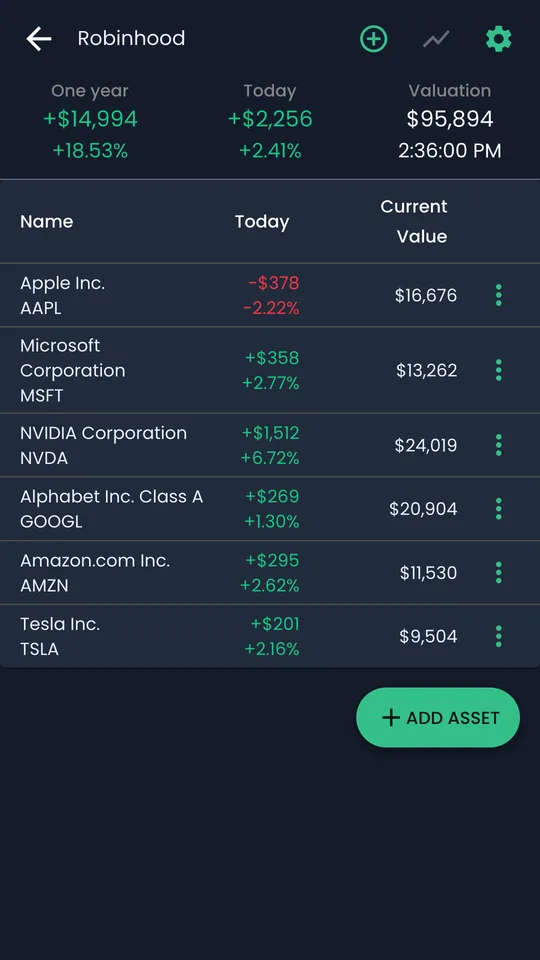
Free Stocks, funds, crypto and more Over 200,000 market-priced assets, plus property, cash, pensions, debts and anything you value yourself.
- Search over 200,000 stocks, ETFs, funds and cryptocurrencies from more than 60 exchanges
- Gold, silver and other precious metals
- Manual assets for property, cars, cash or anything without a market price, and debts such as mortgages and loans
- Update all your manually priced assets on one page, with optional monthly reminders
- Add a purchase and its cost is filled in from the market price on that day
- Can’t find an asset? Message us from the app and we add it to the catalogue
- Free
- Every asset type, market-priced or manual.
- Premium adds
- Nothing. This feature is fully free.
Available in the iPhone, Android and web apps.
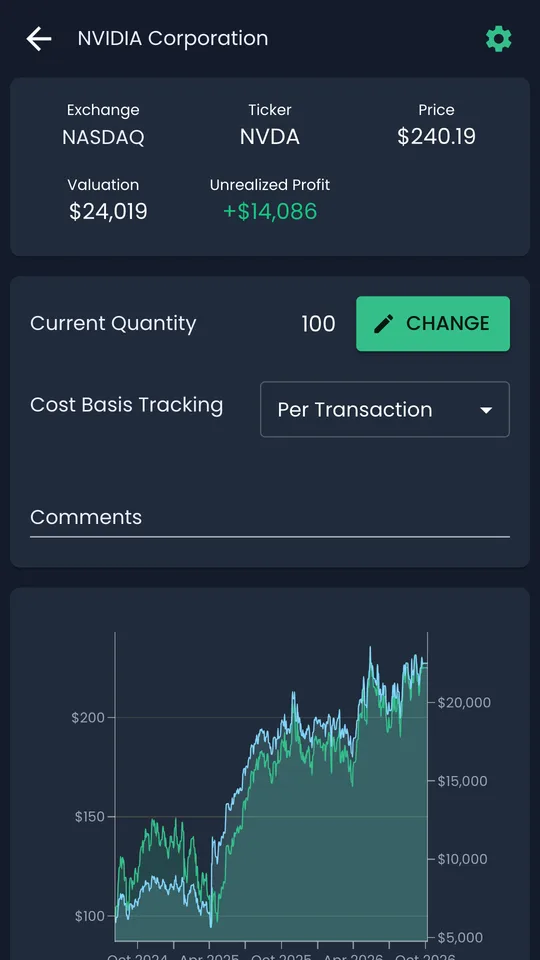
Free · more with Premium Automatic prices Market-priced assets update on their own: closing prices for free, live prices with Premium.
- Stocks, ETFs, funds, crypto and precious metals are priced automatically
- Free accounts get each market’s closing price every day
- Premium adds live intraday prices and today’s change on your dashboard, portfolios and holdings
- Prices refresh when you come back to the app
- Free
- End-of-day prices for every market-priced asset.
- Premium adds
- Live intraday prices for stocks, ETFs and crypto, and today’s change across the app.
Available in the iPhone, Android and web apps.
Free Multi-currency Use any of 59 currencies and see everything in your home currency.
- Choose your home currency from 59
- Give each portfolio its own currency
- Assets keep the currency they trade in and are converted to your home currency
- See how much of your wealth sits in each currency
- Free
- Every currency, for your home currency, portfolios and assets.
- Premium adds
- Nothing. This feature is fully free.
Available in the iPhone, Android and web apps.
Understand your investments
See what you really earned, where your money sits, and what your holdings pay you.
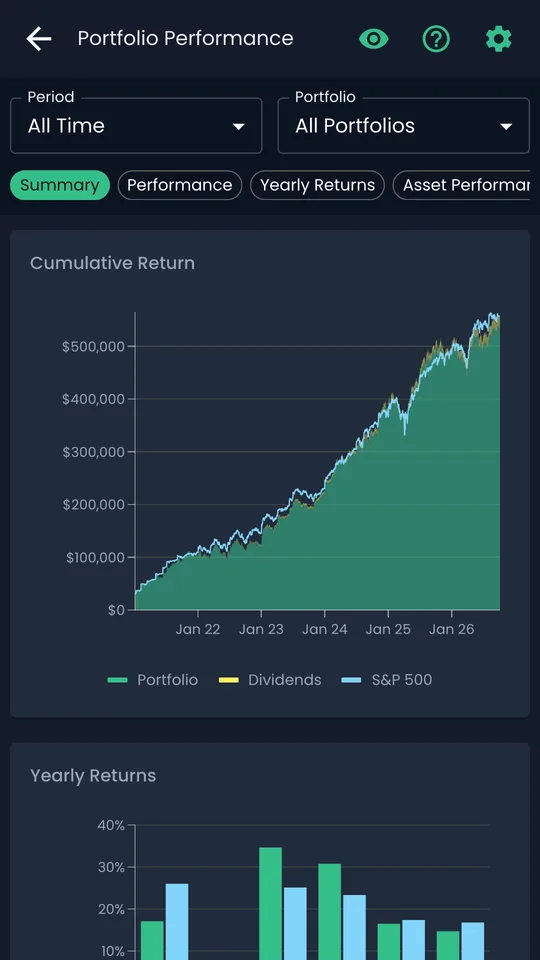
Free · more with Premium Portfolio Performance Your real annualised return, compared with what an index fund would have made.
- Your annualised return for each portfolio and period, from your actual buys and sells
- The same money in one of 15 benchmarks, from the S&P 500 and FTSE 100 to Bitcoin and gold, bought on the same dates
- Cumulative return and yearly returns charts
- Each asset’s realised and unrealised profit and dividends
- Portfolio Vitals: volatility, Sharpe ratio, alpha and beta
- Free accounts see a preview; the full figures come with Premium
- Free
- A preview: your starting and end values, with sample charts.
- Premium adds
- Your returns against an index, yearly returns, each asset’s profit, and Portfolio Vitals.
Available in the iPhone, Android and web apps. Added in version 3.1.3.
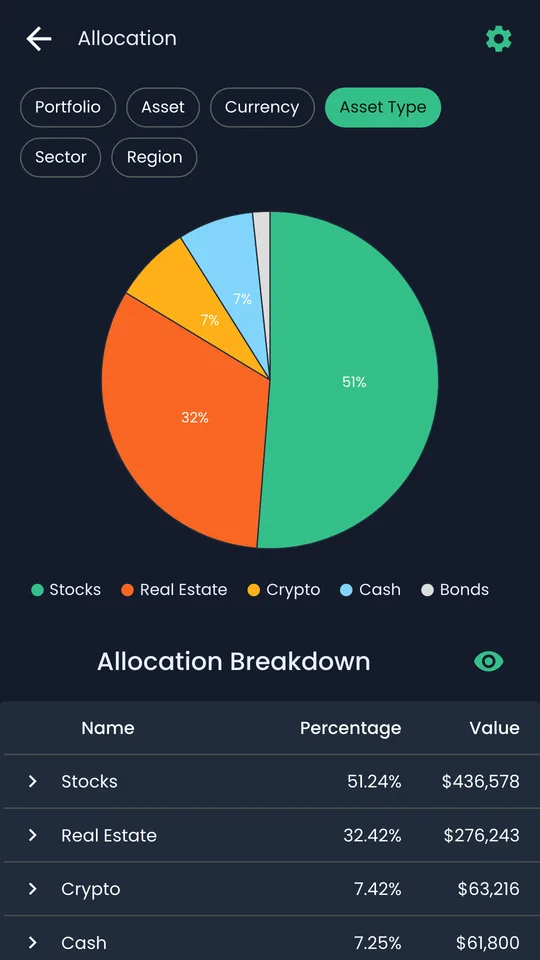
Free · more with Premium Allocation Where your money sits: by portfolio, asset, currency, asset type, sector and region.
- Pie chart and table by portfolio, asset or currency
- With Premium, by asset type (stocks, bonds, cash, property, crypto), sector and region
- Set the type, sector and region yourself for assets the app can’t classify
- Counts only your share of joint portfolios
- Free
- Allocation by portfolio, asset and currency.
- Premium adds
- Allocation by asset type, sector and region.
Available in the iPhone, Android and web apps.
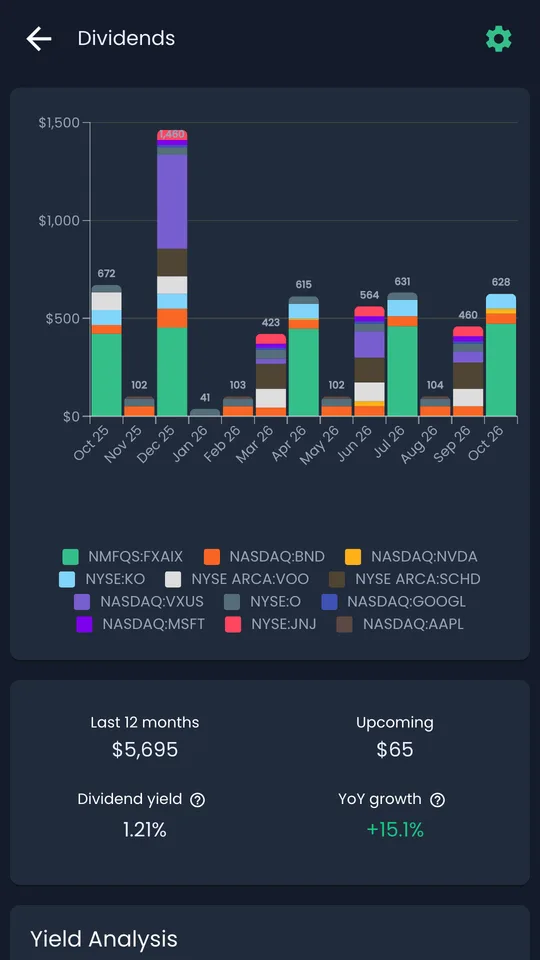
Free · more with Premium Dividends The dividends your market-priced holdings have paid, and with Premium, what is coming next.
- Monthly and yearly dividend charts, broken down by holding
- Total income over the last 12 months
- Choose which portfolios to include
- With Premium, upcoming dividends, dividend yield and year-on-year growth
- Free
- Five years of dividend history, with monthly and yearly charts.
- Premium adds
- Upcoming dividends, yield and income analysis.
Available in the iPhone, Android and web apps.
Plan ahead
Turn today’s numbers into a retirement date and goals you can track.
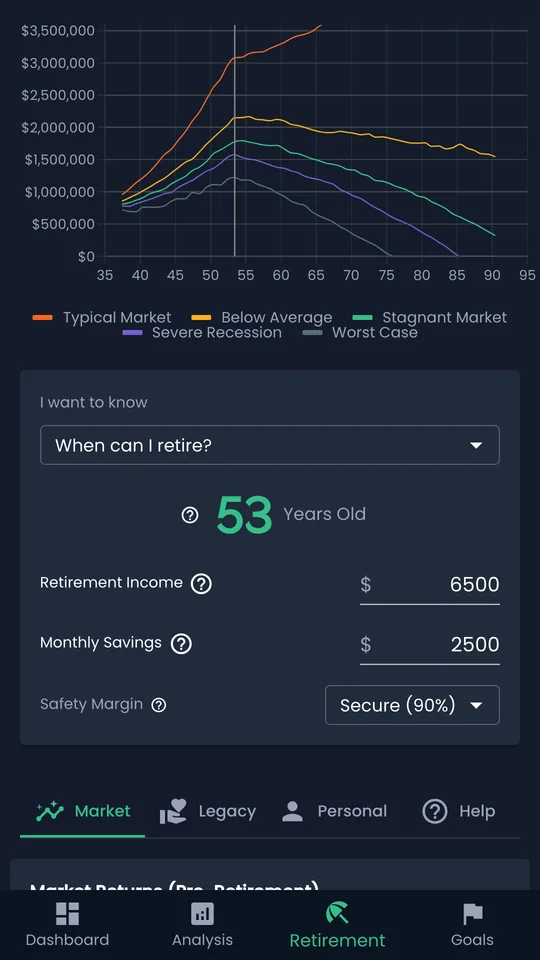
Free · more with Premium Retirement planner When can you retire, how much to save, how much you can spend, and how safe your plan is.
- When can I retire? How much should I save? How much can I spend? How safe is my plan?
- Starts from the portfolios you choose, not a guess
- Tests your plan against 1,000 simulated markets and shows the typical, below-average and worst-case paths
- Pick how safe you want to be, from a plan that works in 50% of simulated markets to one that works in 99%
- With Premium, set your own market returns, life events and legacy
- Free
- All four questions, each tested against 1,000 simulated markets, with ready-made market assumptions.
- Premium adds
- Your own market return assumptions, and life event and legacy settings.
Available in the iPhone, Android and web apps.
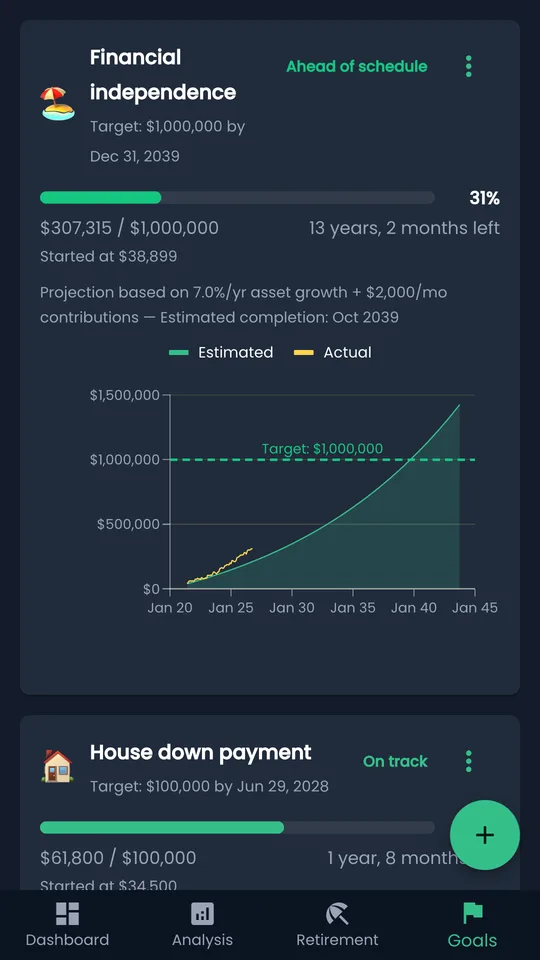
Free · more with Premium Goals Set a target and a date, and see whether you are on track.
- A target amount and date, linked to the portfolios that count toward it
- Monthly deposits and growth projected to an estimated finish date
- Ahead of schedule, on track or behind, at a glance on your dashboard
- Goals that start below zero, such as paying off a debt
- A Retirement goal type
- Free
- One goal.
- Premium adds
- Unlimited goals.
Available in the iPhone, Android and web apps.
Your numbers, wherever you look
On your home screen, in your AI assistant, in a spreadsheet or in your own code.
Free · more with Premium Home-screen widgets Your net worth and today’s change on your iPhone or Android home screen.
- Net worth and today’s change for your whole account or a single portfolio
- Widgets for iPhone and Android home screens
- An eye button that hides the amounts
- With Premium, your biggest movers of the day
- Free
- Net worth and today’s change, for your whole account or one portfolio, with a button to hide amounts.
- Premium adds
- Live prices and your top movers.
Available in the iPhone and Android apps. Added in version 3.2.5.
Free · more with Premium ChatGPT and Claude Ask an AI assistant about your portfolio, or have it record holdings from a statement.
- Free
- Questions about your holdings, and recording portfolios and holdings.
- Premium adds
- Analysis questions: net worth history, movers, allocation, dividends and goals.
Available in the ChatGPT and Claude, on the web, desktop and mobile. Added in version 3.2.43.
Everything about ChatGPT and Claude →Free · more with Premium REST API Read and record your portfolios from your own scripts with a personal access token.
- Free
- Your net worth, portfolios and holdings, and recording positions.
- Premium adds
- History, allocation, dividends, movers and goals.
Available in the any language that can make an HTTPS request. Added in version 3.3.1.
Everything about REST API →Free · more with Premium Excel template A workbook that refreshes your net worth, portfolios and holdings every time it opens.
- Free
- Net worth, portfolios and holdings at the last close.
- Premium adds
- History and allocation tables, and live prices.
Available in the Excel for Windows and Excel for Mac with Microsoft 365.
Everything about Excel template →Your data, your control
Bring your holdings in, keep them in sync across devices, and take them with you.
Free Import from a file Turn a broker export, statement or screenshots into holdings, with a review before anything is saved.
- Free
- Import from CSV, Excel, PDF or up to 20 screenshots.
- Premium adds
- Nothing. This feature is fully free.
Available in the iPhone, Android and web apps. Added in version 3.2.25.
Everything about Import from a file →Free Sync, sign-in and backup Your portfolios on every device, with no name or email required, and your data exportable any time.
- An anonymous account is created for you, no name or email required
- Your portfolios sync securely across your phone, tablet and the web
- Sign in on another device with your recovery email, your sync key or a QR code
- Add a recovery email so you can always get back in
- Export to Excel or a JSON backup whenever you like (keep the backup safe: it includes your sync key)
- Free
- Sync across devices, every sign-in method, and Excel and JSON exports.
- Premium adds
- Nothing. This feature is fully free.
Available in the iPhone, Android and web apps.
Free Privacy and app lock No bank logins, no tracking SDKs, and a Face ID or fingerprint lock.
- No bank or broker logins: add holdings by search, import or an AI assistant
- No ad or third-party tracking SDKs, and your data is never sold or shared for advertising
- Lock the iPhone and Android apps with Face ID or your fingerprint
- Hide the amounts on your home-screen widgets
- Delete your account from the app at any time
- Free
- Everything.
- Premium adds
- Nothing. This feature is fully free.
Available in the iPhone, Android and web apps.
Free and Premium
What each plan includes
Every feature has a free version. Premium adds live prices and deeper analysis, and you can buy it in the iPhone and Android apps.
| Feature | Free | Premium adds |
|---|---|---|
| Net worth dashboard | Free: Your net worth, its one-year, month-to-date and year-to-date change, and history charts for any range. | Premium adds: Today’s change on the dashboard, your portfolios and your holdings, with live prices. |
| Portfolios | Free: Unlimited portfolios and assets, with currencies, ownership shares, tags, archiving and Recently deleted. | Premium adds: — |
| Stocks, funds, crypto and more | Free: Every asset type, market-priced or manual. | Premium adds: — |
| Automatic prices | Free: End-of-day prices for every market-priced asset. | Premium adds: Live intraday prices for stocks, ETFs and crypto, and today’s change across the app. |
| Multi-currency | Free: Every currency, for your home currency, portfolios and assets. | Premium adds: — |
| Portfolio Performance | Free: A preview: your starting and end values, with sample charts. | Premium adds: Your returns against an index, yearly returns, each asset’s profit, and Portfolio Vitals. |
| Allocation | Free: Allocation by portfolio, asset and currency. | Premium adds: Allocation by asset type, sector and region. |
| Dividends | Free: Five years of dividend history, with monthly and yearly charts. | Premium adds: Upcoming dividends, yield and income analysis. |
| Retirement planner | Free: All four questions, each tested against 1,000 simulated markets, with ready-made market assumptions. | Premium adds: Your own market return assumptions, and life event and legacy settings. |
| Goals | Free: One goal. | Premium adds: Unlimited goals. |
| Home-screen widgets | Free: Net worth and today’s change, for your whole account or one portfolio, with a button to hide amounts. | Premium adds: Live prices and your top movers. |
| ChatGPT and Claude | Free: Questions about your holdings, and recording portfolios and holdings. | Premium adds: Analysis questions: net worth history, movers, allocation, dividends and goals. |
| REST API | Free: Your net worth, portfolios and holdings, and recording positions. | Premium adds: History, allocation, dividends, movers and goals. |
| Excel template | Free: Net worth, portfolios and holdings at the last close. | Premium adds: History and allocation tables, and live prices. |
| Import from a file | Free: Import from CSV, Excel, PDF or up to 20 screenshots. | Premium adds: — |
| Sync, sign-in and backup | Free: Sync across devices, every sign-in method, and Excel and JSON exports. | Premium adds: — |
| Privacy and app lock | Free: Everything. | Premium adds: — |
Start tracking in a minute
An anonymous account is created for you, no name or email required.