What Should Your Net Worth Dashboard Show? Three Layouts to Try
A net worth dashboard should answer two or three questions at a glance. What to put on yours, three layouts to copy, and how to set them up in TrackMyStack.
The Short Answer
Your dashboard is the screen you look at most, so it should answer the questions you actually ask, and nothing else. For most people that means two or three of these:
- How much am I worth? One number.
- Which way is it heading? A chart over a range that suits you.
- Am I on track? Progress towards a goal and a date.
- Where is it all? Your accounts at a glance.
- What moved today? The holdings behind today’s change.
Pick the questions that matter to you and hide the rest. In TrackMyStack you can now do exactly that: show, hide and reorder the cards on your dashboard. Below are the cards to choose from, three layouts to copy, and how to set them up.
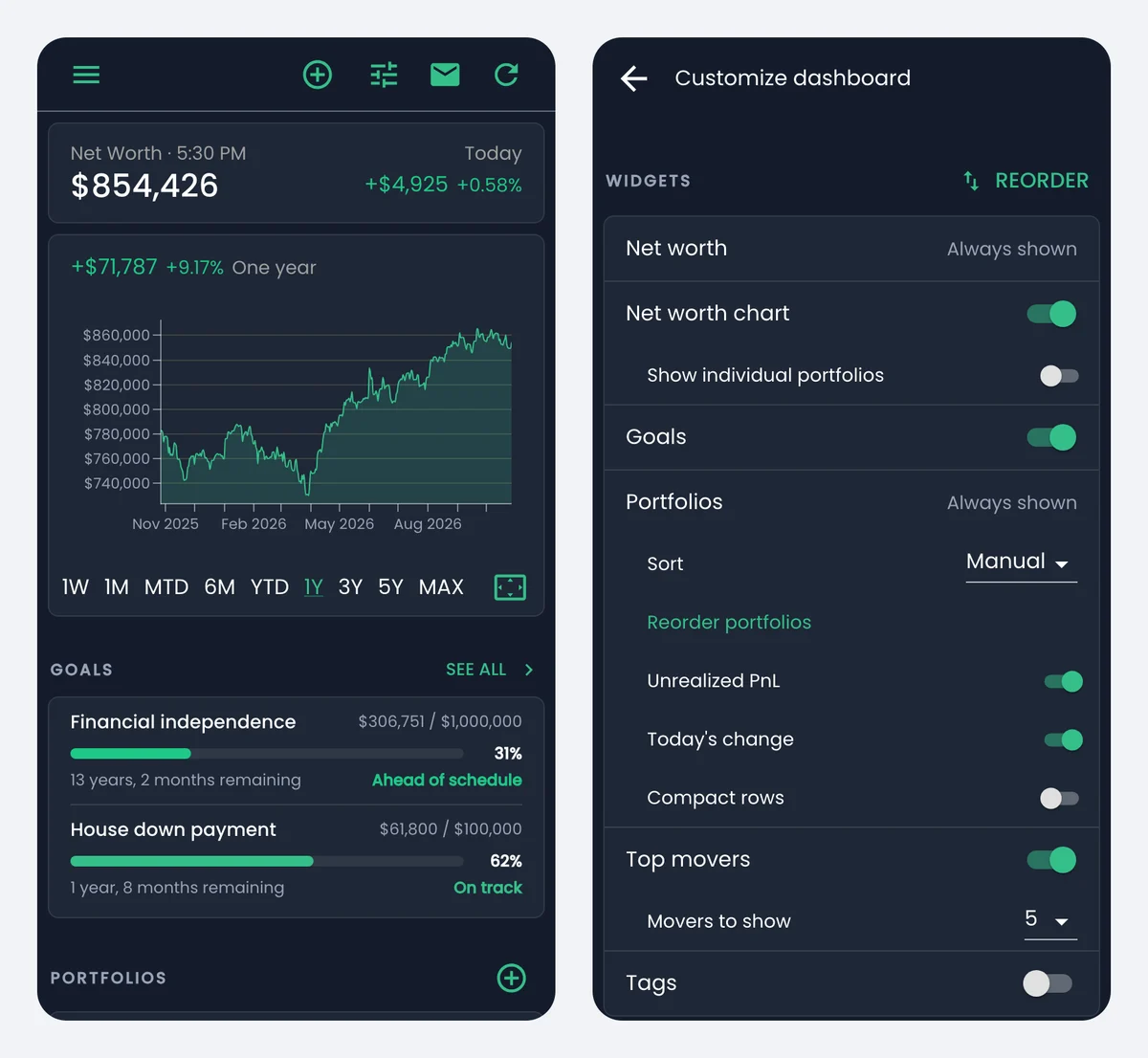
The default dashboard (left) and the Customize dashboard page (right).
Why a Smaller Dashboard Helps
More information isn’t more insight. Net worth is a long game: what matters is the direction over months and years, and whether you’re on course for the things you’re saving for. A dashboard that leads with today’s biggest losers invites you to react to a single red day, and one stuffed with every chart makes the useful number harder to find.
So decide what the screen is for. If you check in once a month, it needs one number. If you’re saving towards a target, it needs that target. If you follow markets every day, it should explain why today’s number moved. Those are different screens.
The Cards You Can Choose From
- Net worth. Always at the top: your total across the portfolios you include in net worth, and the time of the latest prices. With Premium it also shows today’s change on live prices.
- Net worth chart. Your net worth over 1W, 1M, MTD, 6M, YTD, 1Y, 3Y, 5Y or MAX, with the change over that range above it. It can split the line by portfolio and stack the portfolios.
- Goals. Up to three goals, each with how far along you are and whether you’re ahead of schedule, on track or behind. See all opens the rest, and a goal’s menu has Hide from Dashboard if you want to keep one off this screen. One goal is free; more need Premium.
- Portfolios. Always shown, because it’s how you open each portfolio and its holdings. Sort by hand, by value or alphabetically, and choose what each row shows: unrealized gains, today’s change (Premium) and compact rows.
- Top movers. The 3, 5 or 10 holdings that moved most in value. With Premium it shows today’s moves on live prices; without it, the moves of the previous trading day. Manual holdings such as property are left out.
- Tags. If you group your portfolios with tags (say, “Retirement” or “Kids”), each tag and its combined value.
Three Layouts to Try
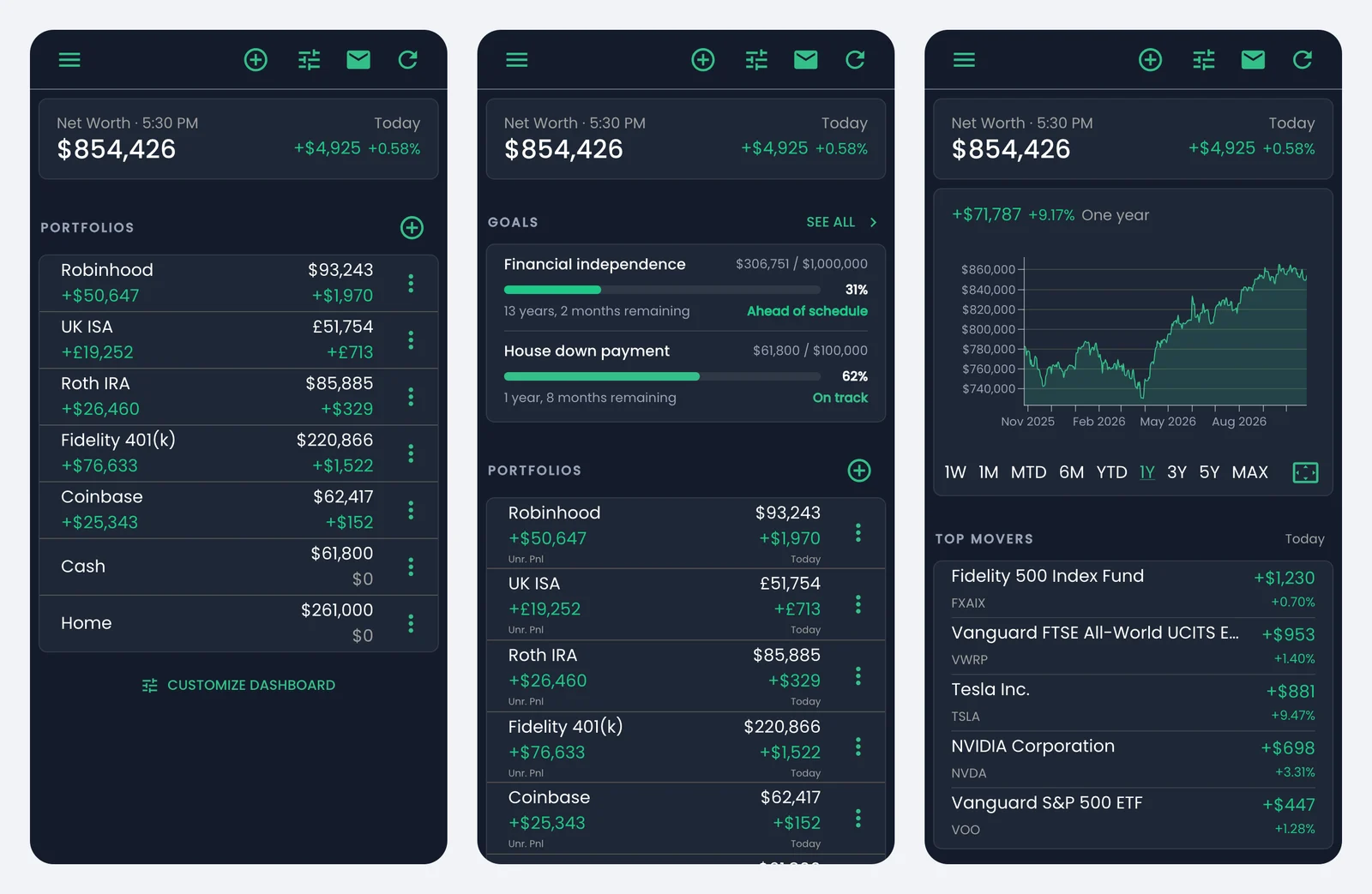
From left: Just the number, Goals first, and Active investor.
1. Just the number
For: people who check in once a month, and anyone who finds the daily wobble stressful.
Show: Net worth and Portfolios, with compact rows. Hide: the chart, Goals and Top movers. For even fewer daily signals, switch off Today’s change for portfolio rows, so only the net worth card mentions today.
You get your total and your accounts in one screen, each a tap away from its detail, with far less pulling your eye to a bad day. If you’d like a sense of direction without the full chart, switch the chart back on and set it to 1Y or longer.
2. Goals first
For: anyone saving towards something concrete: financial independence, a house deposit, paying off a loan.
Show: Net worth, Goals and Portfolios. Hide: the chart and Top movers.
Progress towards a target answers “am I doing enough?” better than a line that wiggles. A goal shows its progress and whether you’re ahead or behind, so the number you’re working towards sits right under your net worth.
3. Active investor
For: people who follow the markets and want to know what drove today’s number.
Show: Net worth, the chart and Top movers, with Top movers moved above Portfolios. Hide: Goals.
Today’s change raises the question “why?”, and Top movers answers it before you’ve scrolled. Set Movers to show to 10 if you hold a lot of positions. With Premium, the movers and today’s change use live prices.
If you track a household or several pots of money, add Tags to any of these.
How to Set It Up in TrackMyStack
- On the dashboard, tap the Customize dashboard icon (the sliders at the top of the dashboard on a phone, in the top bar on a larger screen), or the Customize dashboard button at the bottom of the dashboard.
- Use the switches to show or hide the chart, Goals, Top movers and Tags. Net worth and Portfolios are always shown.
- Tap Reorder, drag the handles to change the order of the cards, then tap Save. The chart always sits right under your net worth.
- Set each card’s options just below it: how portfolios are sorted and what their rows show, how many movers to list, and whether the chart splits by portfolio.
The layout belongs to your account and syncs securely to your phone, tablet and the web app, so you set it up once. New accounts start with the chart, Goals and Portfolios switched on, and Premium accounts get Top movers too.
Frequently Asked Questions
Can I hide my portfolios from the dashboard? No. The Portfolios card is how you open each portfolio and its holdings, so it’s always shown. Compact rows make it shorter.
Does my layout sync between my phone and the web app? Yes. It’s saved to your account, so the same layout appears wherever you sign in.
Is customizing the dashboard free? Yes, every card and every layout. Premium adds live prices (today’s change in the net worth card and on portfolio rows, and today’s moves in Top movers, where free accounts see the previous trading day) and more than one goal.
Can I change the chart’s time range? Yes. Tap 1W to MAX under the chart. The range you pick also applies to the charts on portfolio and tag pages.
What if I don’t have any goals yet? Create one from the Goals tab. If you switched the Goals card off, turn it back on in Customize dashboard.
The Bottom Line
A dashboard earns its place by answering your questions at a glance. Start with the layout closest to how you check your money, live with it for a couple of weeks, and change it when you catch yourself scrolling past something. If even opening the app is too much, a home-screen widget or the Apple Watch and Garmin apps show the number without it. To try TrackMyStack, the web app starts without a name or email.